Run pitch projects that win you clients
Check a prospect's AI visibility in minutes, send them a report that makes the case for you, and let your funnel page capture inbound leads.
About 10 minutes · Growth plan · 6 steps
Open Pitch projects
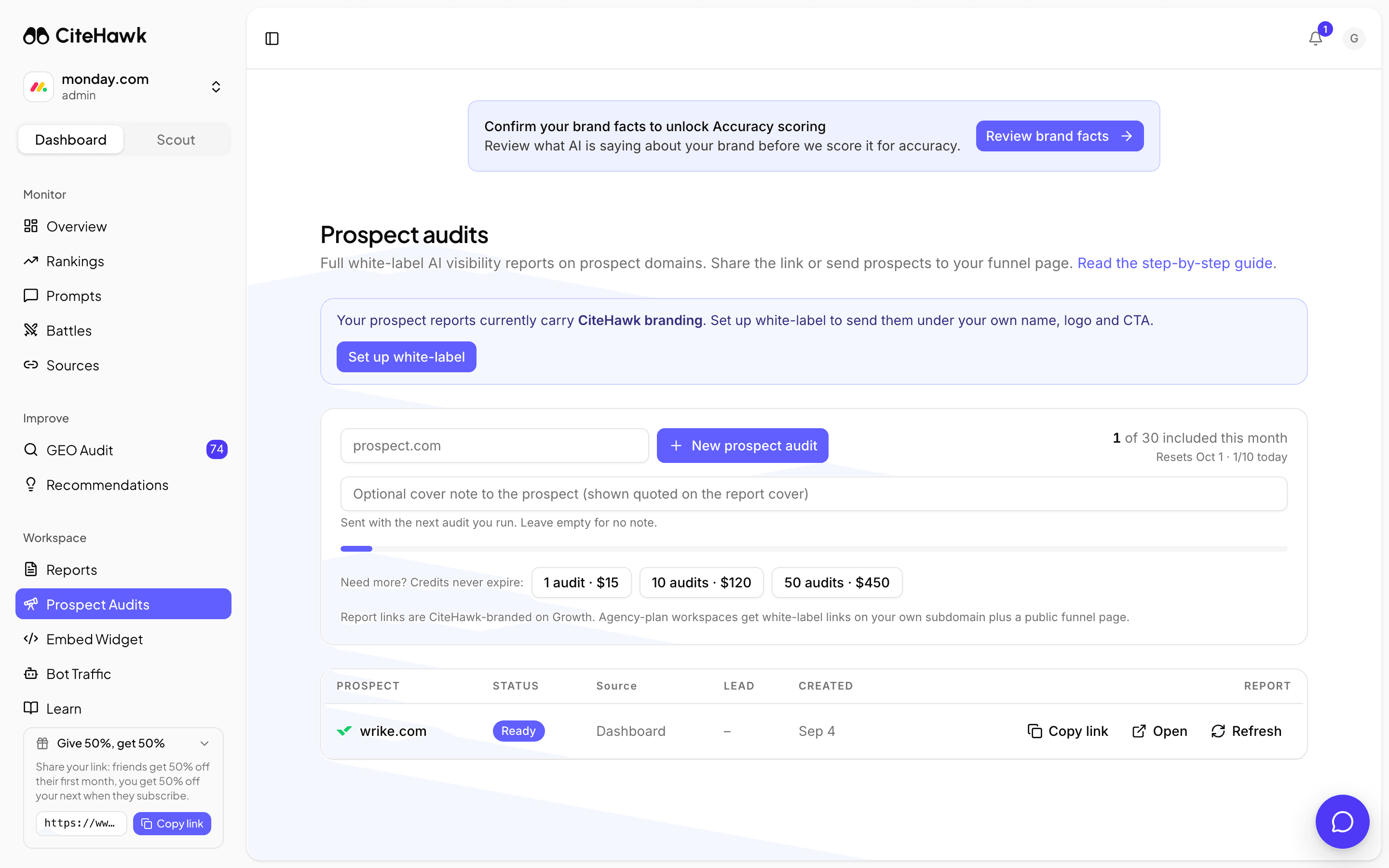
In your workspace, open Prospects from the sidebar. This is your pitch project console: start runs at the top, and every report you have built lives in the table below. The meter on the right shows how many included pitch projects you have left this month.
You should see: You can see the domain field, the New pitch project button, and your monthly quota meter.
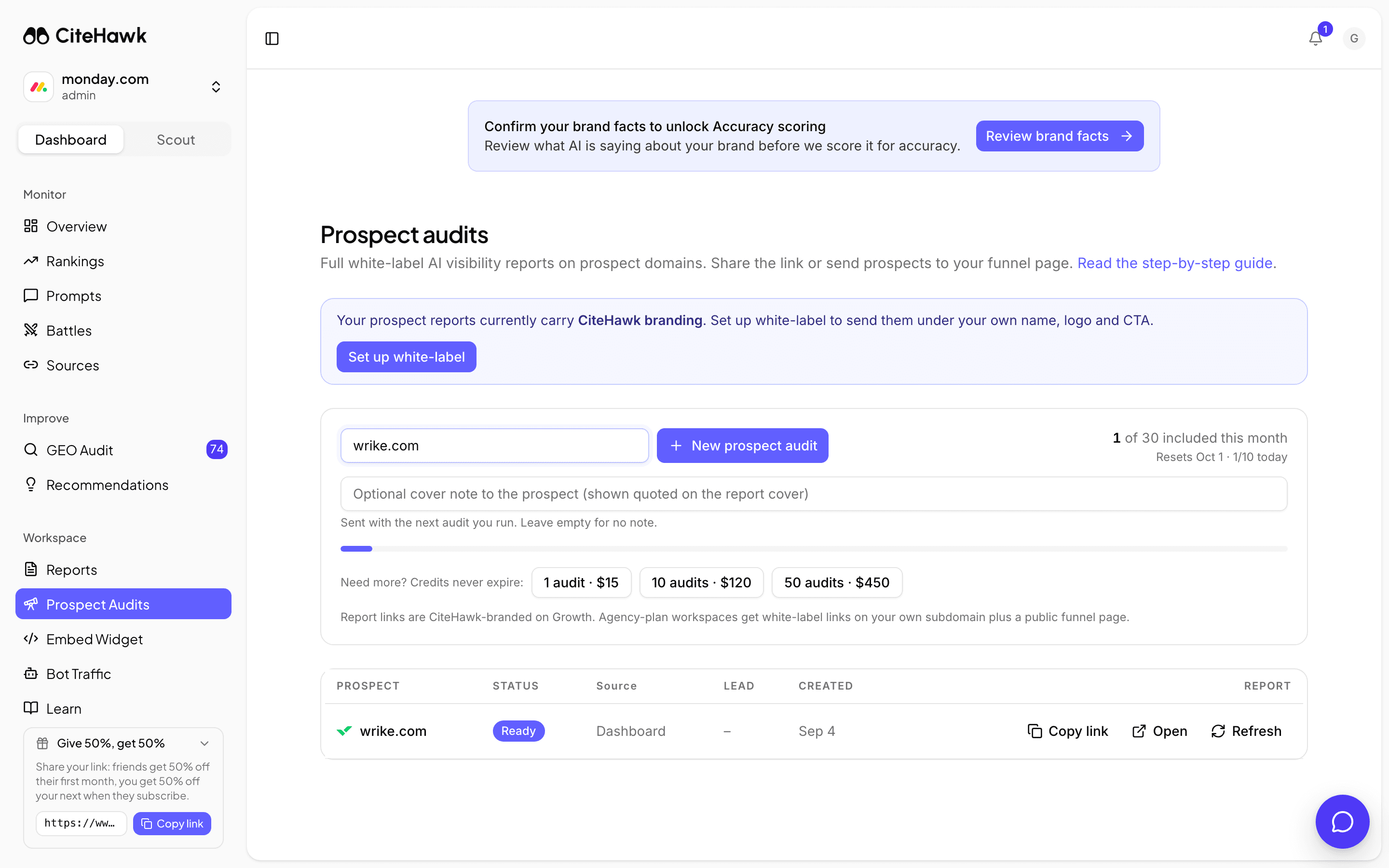
Run a pitch project on a prospect
Type the prospect's domain and click New pitch project. The optional cover note travels with the report and appears quoted on its cover, so a line like "Ran this ahead of our call" arrives in your voice. CiteHawk then puts real buyer questions for their category to the AI models and scores what comes back.
You should see: The run appears in the table as Queued, then Running.
Send the report
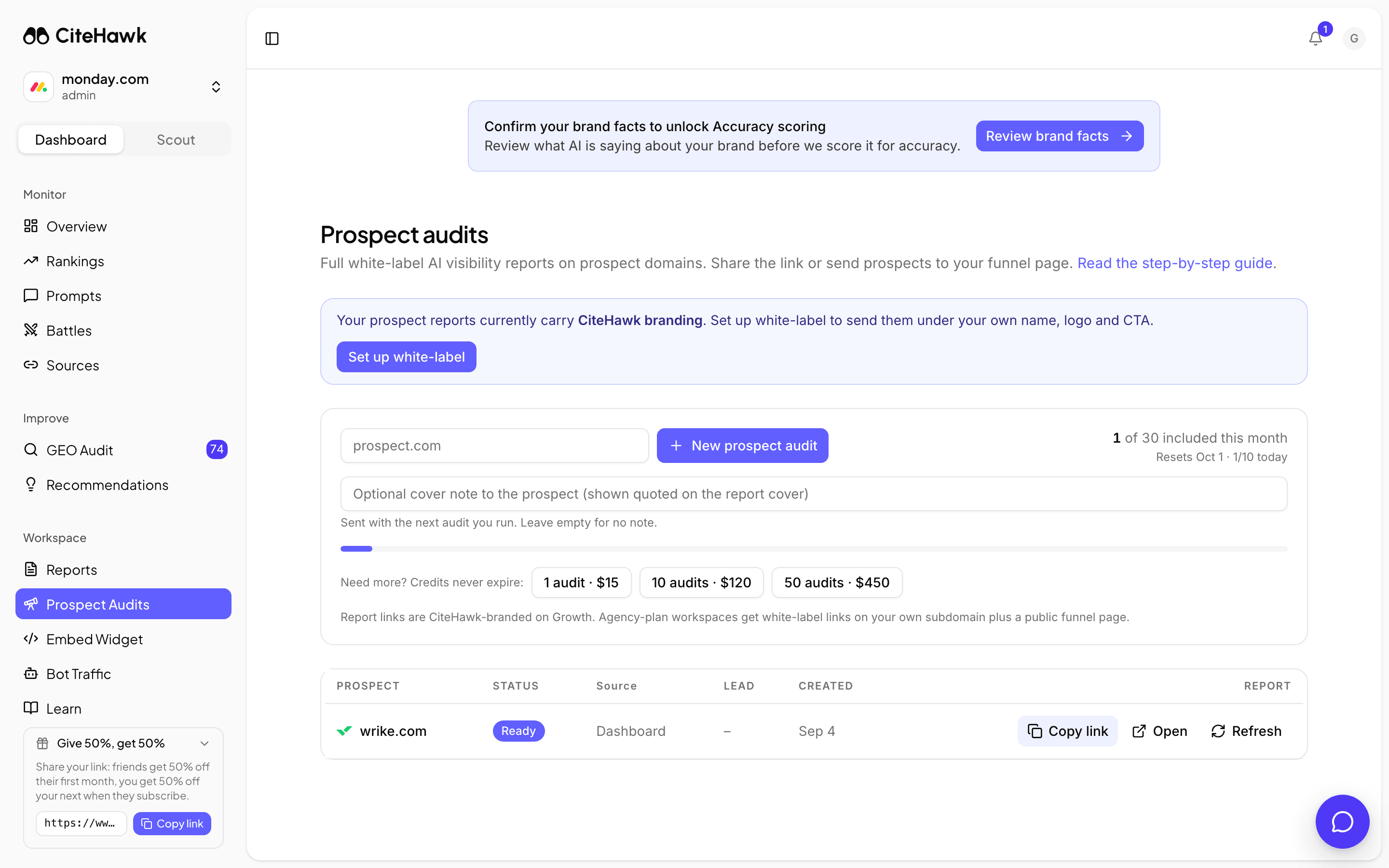
When the row reads Ready, click Copy link and send it, or Open to read it first. The report shows the prospect how AI models answer their buyers today: where they show up, where competitors are named instead, and what to do about it. It ends on your call-to-action, which is what turns the report into a meeting.
You should see: Copy link flips to Copied, and the link opens without a login.
Put your name on it
On the Growth plan, reports carry CiteHawk branding. On the Agency plan they are white-labeled: your logo, your colors, your booking link, served from your own subdomain. If you see the branding nudge above the run form, Set up white-label takes you to the settings, and the white-label guide walks the whole setup.
Let prospects come to you
With white-label set up, your funnel page goes live at your subdomain. It asks "Does AI recommend your business?", runs the check while the visitor watches, and captures their name and email before the report opens. Every pitch project it runs lands in your table with the lead attached, marked as funnel-sourced. Put the link in your outreach, your email signature and your site.
You should see: Open funnel page in the console header shows your live page.
Top up when a good month runs dry
Included pitch projects reset monthly, and the reset date sits under the quota meter. If a busy pipeline uses them up, buy a credit pack from the console: credits are used automatically after your included pitch projects and never expire while you are subscribed.
If something doesn’t look right
The New pitch project button is disabled
Your included pitch projects for the month are used and you hold no credits. Buy a credit pack from the console, or wait for the reset date shown under the meter. A daily cap also applies, so a heavy day can pause you until tomorrow.
A run shows Failed
Click Retry on the row. Some sites block the initial scan or time out; a retry usually gets through. If the domain keeps failing, check that it resolves and serves a real homepage.
I ran the same prospect twice and got the old report
Recent pitch projects are reused for a while rather than re-running, so a repeat request returns the existing report link. Use Refresh on the row when you genuinely need fresh answers; the confirm dialog tells you it uses one pitch project.
I do not see Prospects in my sidebar
Pitch projects are included on the Growth and Agency plans, and the page is hidden from client-role members. If you are on a lower plan, the Prospects page shows a preview with an upgrade path.